AI Mirror: Screen Mirroring TV
- 3.2
- Rating
- 10.00M
- Installs
- Free
- Price

 Analysis by App-foxy
I tried AI Mirror: Screen Mirroring TV with a simple goal: move something from a phone-sized screen to a television without turning the process into a technical project. That is the right way to look at this app. It is a free video player and editing utility from Insumos XP, aimed at casting videos and photos and mirroring a mobile display on a larger screen. The idea is straightforward, but the quality of the experience depends heavily on what you are sending, which television or receiver you are using, and how stable the connection is at that moment.
My first impression is that this is more useful as a quick bridge between a phone and a big screen than as a complete media center. If you have a family photo, a short clip, or an app screen you want other people to see, the appeal is obvious. You do not need to pass the phone around or crowd around a small display. At the same time, I would not treat it as a universal replacement for a television’s own casting tools, a dedicated streaming device, or an app made specifically for long-form video playback.
From a phone in your hand to a shared screen
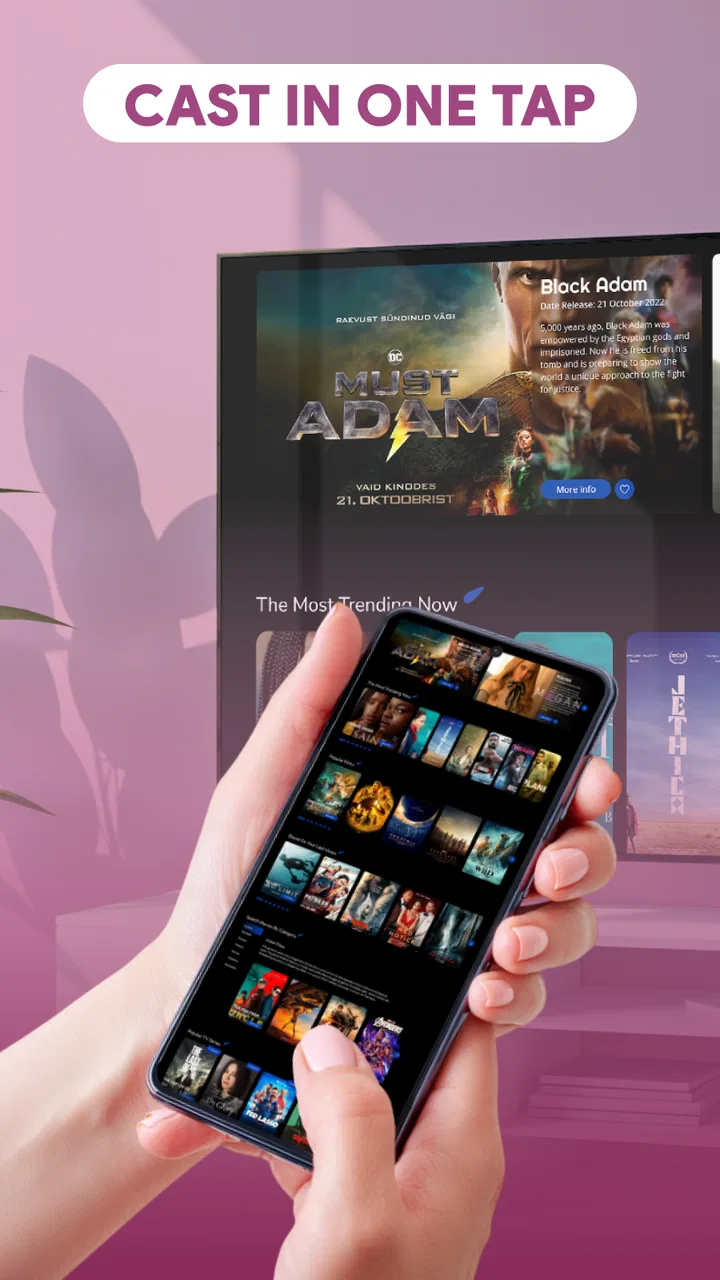
The most realistic starting point is an everyday situation: I have a video or a group of photos on my phone, several people are nearby, and the television is the most comfortable screen in the room. With ordinary alternatives, I might open the television’s built-in sharing feature, search for a compatible receiver, use a cable, or send the file through a service that everyone already happens to use. AI Mirror gives me another route by putting the casting and mirroring idea in one focused app.
You May Also Like

 Blood Strike: 2.5 Anniversary
Blood Strike’s Loadouts Turn Every Drop Into a Tactical Gamble
A close look at Blood Strike’s custom loadouts: how fast access to signature weapons reshapes its battle royale rhythm, rewards preparation, and narrows the gap between fights.

 Pandora - Music & Podcasts
Pandora’s Music Is Easy to Start, but Harder to Recover
Pandora’s strength is its low-effort path from a seed to a station. Its weak spot is how much confidence it asks you to place in connection, setup, and quiet recovery.

 8 Ball Pool
 Is Built on Rivalries, Rematches, and Routine
A close look at the rivalries, rematches, shared routines, and unanswered safety questions that turn a quick pool match into a persistent mobile community.

 Samsung Music
’s Quiet Strength Is Playing What You Already Own
Its reach comes less from spectacle than from dependable access to a personal library. That simplicity is both the app’s strongest retention engine and its ceiling.

 AccuWeather: Weather Radar
AccuWeather Review: A Quick, Clear Forecast for Everyday Decisions
For everyday plans, the best forecast is the one you can understand quickly. AccuWeather makes rain timing, radar, and local conditions easy to act on, with a few trade-offs.

 Hill Climb Racing
Why Hill Climb Racing Still Turns Crashes Into One More Run
A tiny car, a bumpy hill and one more upgrade: Hill Climb Racing keeps resurfacing because its simple chaos makes every near-miss feel personal.
More From Our News Desk



That distinction matters. Casting usually means sending selected media to the television while the phone remains available for other tasks. Screen mirroring is broader: the television follows what is happening on the phone display. Those two approaches are not interchangeable. Casting is generally the cleaner choice for showing a finished video or a photo album, while mirroring is better when the content is inside an app or when I need to demonstrate a phone workflow that cannot be sent as a standalone media file.
The app’s short store label, “AI Mirror,” is less informative than its full purpose. I would not install it expecting an artificial-intelligence editor or a tool that transforms images. Its practical role is connecting a mobile screen with a larger display. That makes the name easy to remember, but the real value is in the handoff from phone content to television viewing.
It is also worth putting the audience in context. The app is free, carries an Everyone age rating, and has passed the one-million-install mark. An average rating of 3.3 from roughly 1.3 thousand ratings suggests a mixed experience rather than a universally smooth one. I read that as a reason to keep expectations realistic: the concept is useful, but compatibility and connection behavior will influence whether it feels effortless on a particular setup.
Preparing the room before opening the app
The best results begin before I tap the cast button. I first make sure the phone and the television or receiving device are ready to communicate through the same local setup. If one device is using a different connection route, discovery may fail even though both are online. This is one of the most important practical details because a missing television can look like an app problem when the real issue is the network arrangement.
I also decide whether I need a single file or the entire phone screen. For a holiday clip, I prefer a media handoff because it keeps the presentation focused. For showing someone how to use an app, browsing a gallery, or displaying content that has no cast option of its own, mirroring makes more sense. Choosing the mode first prevents the common mistake of starting a full-screen session when a simpler media cast would have done the job.
Another useful preparation step is cleaning up the phone display. In mirror mode, notifications, incoming messages, accidental taps, and orientation changes can become part of what everyone sees. I would silence interruptions, close unrelated apps, and rotate the phone before beginning. That is not a special feature of AI Mirror, but it is a workflow improvement that makes the result feel much more deliberate.
Finding the receiver and beginning the handoff
Once the app is open, the central task is selecting the screen that should receive the content. The handoff has two separate parts: discovery and transmission. Discovery answers, “Can the phone see the television?” Transmission answers, “Can the selected video, photo, or phone display remain visible there?” A successful first step does not automatically guarantee a stable second step.
I would give the app a moment to identify available receivers rather than repeatedly tapping every option. If the television does not appear, I would check the connection arrangement, wake the television, and confirm that the intended receiving function is active. Restarting the app can be reasonable, but jumping immediately between several unrelated casting tools can make it harder to tell which component is failing.
For a single photo or video, I would select the item only after the receiver is ready. That order reduces the chance of choosing media, changing orientation, and then having to repeat the process. For mirroring, I would start with a clean home screen or the exact app I intend to demonstrate, because anything visible during the initial handoff may appear on the television.
This is where AI Mirror is most appealing to casual users. It keeps the purpose narrow enough that I can think in terms of “phone to room screen” instead of managing a larger media library. The trade-off is that a narrow tool may offer less control than a mature television platform. If I need playlists, detailed playback settings, subtitles handled in a specific way, or advanced organization, the television’s native player or a dedicated media app may be the better starting point.
Managing the phone while the television is showing content
The next handoff is between control and viewing. In a cast-style workflow, the phone acts like a remote source: I choose what should appear, then use the phone to move to another item or stop the session. In a mirror-style workflow, the phone becomes both source and controller, so every swipe, rotation, and screen change can affect the television.
That difference changes how I would use the app with other people. When showing photos to a family group, I would prepare the images in the order I want and avoid opening unrelated screens between them. When demonstrating a mobile app, I would hold the phone steadily and use deliberate taps. Mirroring is powerful because it exposes almost anything on the phone, but that same openness makes it less polished than sending a finished video through a dedicated player.
A practical tip is to keep the phone powered and physically comfortable during longer sessions. Screen mirroring can encourage constant interaction, especially when the content is not already prepared as a file. If I am presenting something for more than a quick look, I would avoid relying on a nearly empty battery and would position the phone where I can reach it without blocking the television or accidentally touching the screen.
I would also test landscape and portrait content before the audience arrives. A vertical photo or clip may look perfectly fine on the phone but leave unused space on a wide television. Rotating the phone can help in mirror mode, but it may also change the way the source app behaves. For a mixed gallery, I would accept that not every item will fill the television identically rather than repeatedly interrupting the presentation.
What the finished result feels like
When the connection behaves well, the result is immediately useful: a small personal screen becomes a shared viewing surface. Photos become easier for a group to inspect, short videos become more comfortable to watch, and a phone-based demonstration becomes visible from across the room. That is the strongest case for this app. It removes the social inconvenience of passing a phone around.
I especially like the idea for spontaneous situations. Someone sends me a short clip, I want to show it during a conversation, and there is no reason to build a permanent library around it. The app can serve as a temporary path from the phone to the television. It is also suitable for people who do not want to learn several different tools for photos, videos, and basic screen sharing.
Still, I would judge the result by more than whether an image appears. A good session also needs usable control, sensible orientation, and a connection that does not make the audience wait. If the television shows the content but the phone becomes difficult to operate, or if the picture repeatedly stops, the technical success is not enough. In those cases, the app’s convenience disappears quickly.
The current release is version 1.0.0 and requires Android 8.0 or later. That makes the app relevant to many Android phones, but the operating-system requirement should still be checked before planning a shared presentation around an older handset. More importantly, the Android requirement does not by itself guarantee that every television or receiver will behave in the same way. The receiving side remains a central part of the experience.
Where the workflow can break
The first failure point is receiver discovery. If the television does not appear, I cannot get far enough to judge playback quality. This is the kind of friction that makes screen-sharing apps feel unreliable because the user sees a blank list instead of a clear explanation. I would troubleshoot the local connection and receiver state first, then try again with both devices ready before opening a different app.
The second failure point is the difference between casting and mirroring. A user may expect a selected video to continue independently while using the phone for something else, then discover that the chosen workflow follows the phone screen instead. Conversely, someone trying to show an app may choose a media-only route and find that the important content cannot be sent. Knowing which handoff is needed is more valuable than simply pressing the most prominent button.
The third problem is content behavior. Photos and videos are not all prepared the same way, and a file that plays well locally may not produce the same experience on a larger display. I would test an important clip before inviting people to watch it. For casual sharing, a short trial is enough; for a presentation, I would prepare a backup such as the television’s own player or a cable connection.
There is also a privacy risk in mirroring. Because the entire phone display can become visible, a notification or private conversation may appear at the wrong moment. I would never begin a mirror session from a cluttered notification screen. This is a small habit with a large payoff, especially when the television is in a shared room or when children are watching.
Another limitation is that a phone-centered workflow can be less comfortable for extended viewing. A dedicated television app is usually better for browsing a catalog, maintaining playback controls, and watching a long program without repeatedly handling the phone. AI Mirror makes more sense for occasional sharing than for replacing the television’s normal entertainment setup.
How it compares with the usual alternatives
The television’s built-in casting option is the most obvious alternative. If it already handles the exact video service or photo source I use, I would normally choose it because fewer components are involved. AI Mirror becomes more attractive when I want one phone-based route for personal photos, local clips, and general screen mirroring rather than switching between service-specific tools.
A cable connection is another strong competitor. It can be more predictable when wireless discovery is troublesome, and it does not depend on the same kind of receiver visibility. The downside is physical inconvenience: I need the right cable or adapter, the phone must stay near the television, and movement becomes restricted. For a quick room-wide share, the wireless approach is more comfortable when it works.
Dedicated streaming devices can offer a more polished experience for regular viewing. They are usually designed around a remote, a television interface, and supported media services. I would choose one of those for a household that watches content on the big screen every day. I would choose AI Mirror for the narrower job of showing something that currently lives on my phone and does not justify a more elaborate setup.
There is also a difference between mirroring and sending a file. Mirroring is flexible, but it exposes the phone’s interface and depends on the phone staying involved. Direct media playback is cleaner and often easier for an audience. My advice is to use mirroring only when its flexibility solves a real problem; otherwise, send the individual photo or video through the simplest compatible method.
Who will get the most from it
I think the app suits Android users who frequently share personal media in informal settings. It is a sensible candidate for family gatherings, quick demonstrations, classroom-style explanations, and moments when several people need to see the same phone content. The free price also makes experimentation easy: I can test the workflow without committing to a purchase before deciding whether it fits my television setup.
It is less suitable for someone looking for a complete editing suite, a permanent media library, or a guaranteed solution for every television. The category places it alongside video players and editors, but its most distinctive use is the connection between mobile content and a larger display. If my priority is trimming clips, adding effects, organizing a large collection, or watching subscription content through a refined television interface, I would look elsewhere.
I would also skip it as my only plan for an important event unless I had already tested the exact phone, receiver, and media I intended to use. The app can be useful without being the most dependable component in every environment. A short rehearsal tells me whether discovery works, whether the orientation is acceptable, and whether the phone remains manageable during playback.
My final take after following the complete workflow
AI Mirror: Screen Mirroring TV succeeds when the problem is simple: something is on my Android phone, a larger screen is available, and I want other people to see it. Its value comes from reducing the distance between those two points. The best workflow is to prepare the phone, choose between media casting and full mirroring, verify the receiver, and keep a backup plan for anything important.
My opinion is positive but measured. The app is free, accessible to Everyone, and already used by more than a million people, yet the 3.3 average tells me not to confuse popularity with a flawless experience. Connection discovery, receiver compatibility, screen privacy, and long-session comfort all deserve attention. Those are not reasons to dismiss it; they are the conditions that determine whether it feels convenient or frustrating.
The practical recommendation is simple: use it as a flexible sharing bridge, not as a replacement for every television tool. For a spontaneous photo session or a quick phone demonstration, I would give it a try. For reliable daily streaming, advanced playback, or a formal presentation where failure is costly, I would prefer a tested native television option or a wired alternative. That clear boundary is what makes the app useful: it has a focused job, and it works best when I let it do exactly that job.
FAQs for AI Mirror: Screen Mirroring TV
01What is AI Mirror: Screen Mirroring TV and how does it work?
AI Mirror: Screen Mirroring TV is an app that allows users to mirror their smartphone screen onto a larger TV screen. It works by establishing a wireless connection between your mobile device and a compatible TV. This enables you to stream videos, play games, or display presentations on a bigger screen without the need for cables.
02Is AI Mirror: Screen Mirroring TV compatible with all TVs and devices?
AI Mirror is compatible with most smart TVs that support screen mirroring protocols like Miracast or Chromecast. It works with both Android and iOS devices. However, it’s crucial to check if your TV model supports these protocols to ensure seamless connectivity and functionality.
03Does AI Mirror: Screen Mirroring TV require an internet connection?
While AI Mirror itself doesn't require an internet connection for mirroring, both your smartphone and TV must be connected to the same Wi-Fi network. This local network connection allows the app to transmit data effectively during the screen mirroring process, ensuring smooth performance.
04Are there any security concerns when using AI Mirror: Screen Mirroring TV?
AI Mirror employs encryption to secure the data being transmitted between your device and TV. However, as with any app that accesses your network or personal data, it’s important to use secure Wi-Fi networks and avoid public hotspots to minimize any potential security risks.
05What are the main advantages and limitations of using AI Mirror: Screen Mirroring TV?
The main advantage of AI Mirror is its ability to easily project your mobile content onto a larger screen, enhancing the viewing experience. However, limitations include potential lag or quality loss depending on the network speed and compatibility issues with older TV models that do not support modern mirroring protocols.
Pros
- Easy setup with quick connection.
- High-quality video streaming.
- Supports multiple devices.
- Minimal latency during mirroring.
- User-friendly interface.
Cons
- Requires stable internet for best performance.
- Limited free version features.
- Occasional connectivity drops.
- Some features require in-app purchases.
- Compatibility issues with older devices.

AI Mirror: Screen Mirroring TV
Gallery